
PDF guide · REC PDF PRO
How to Fill and Sign a PDF on Windows
Fill supported PDF fields, place visual signatures and initials, understand automatic form detection, and save completed PDFs with REC PDF PRO on Windows.
Quick answer
REC PDF PRO lets you fill supported PDF text and checkbox fields, place reusable visual signatures and initials, add supported overlays, and save the completed document from a Windows desktop workflow.
How to Fill a PDF on Windows
- 1
Open Fill & Sign and choose Fill PDF
Open the PDF you want to complete, then use the Fill & Sign tools and choose Fill PDF.
- 2
Select a supported field
Choose a detected field overlay in the page viewer. REC PDF PRO supports filling detected text fields and supported checkbox fields.
- 3
Enter the value
Type into a text field or change the checkbox value, then continue through the remaining fields.
- 4
Review validation and placement
Check required-field validation when it is shown and make sure values or overlays are positioned as intended.
- 5
Apply and save the completed PDF
Use the available save or apply action. If flattening is offered, decide whether you want the completed field content made non-interactive.
Automatic Form Detection
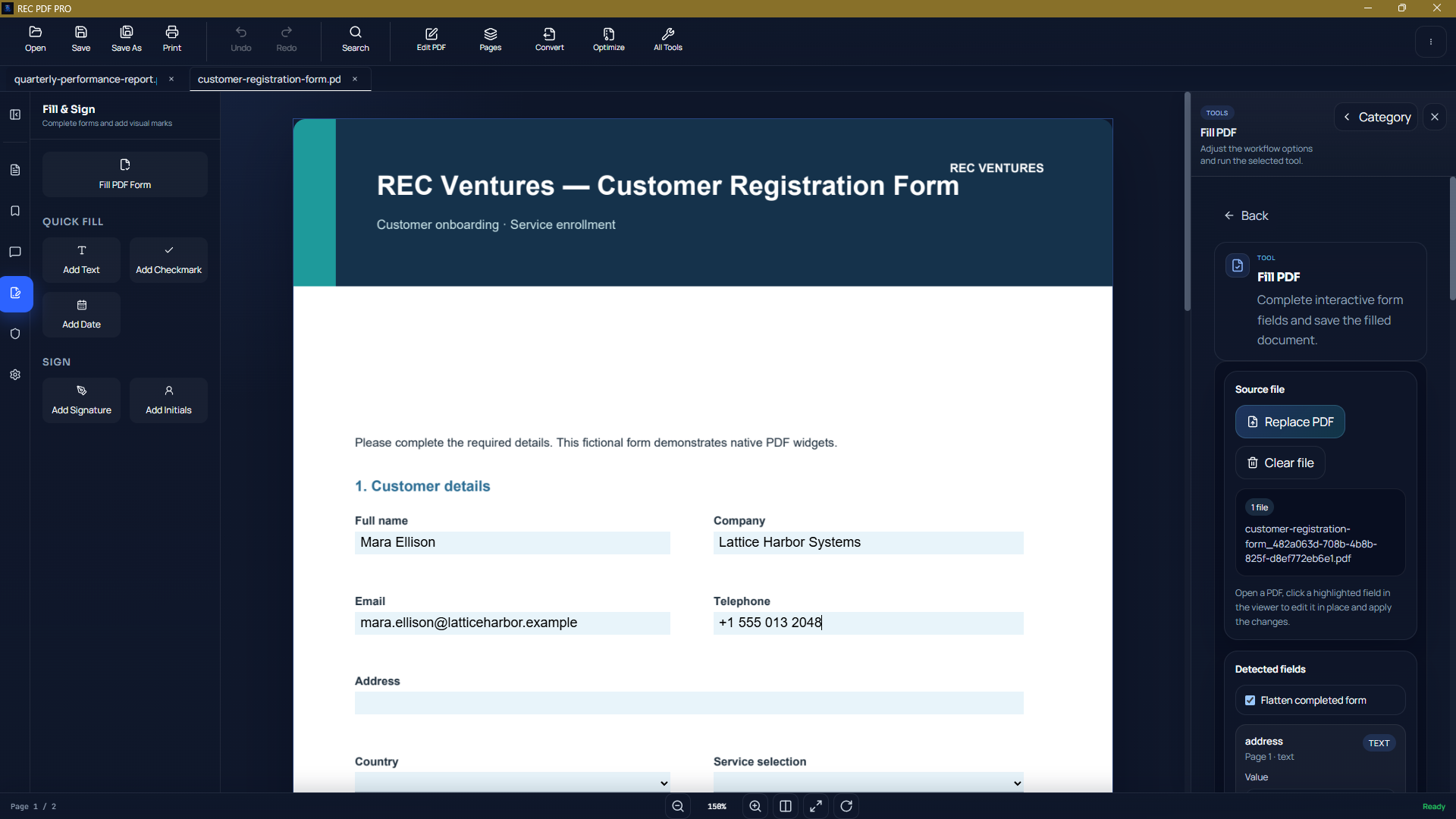
REC PDF PRO can analyze page layout and propose fillable text and checkbox regions when useful. This helps with PDFs that do not expose all of their fill areas cleanly as standard interactive fields.
Detection is heuristic, not OCR
Automatic detection can miss fields, propose extra regions, or return no fields on image-only scanned pages. Review every proposed field before entering important data.
Add a Signature to a PDF
1. Choose a signature image
Open Sign PDF or the matching Signature action and choose a signature image from your computer.
2. Save it locally for reuse
Review the preview. REC PDF PRO can remember the selected visual signature locally for later placement.
3. Place, move, and resize
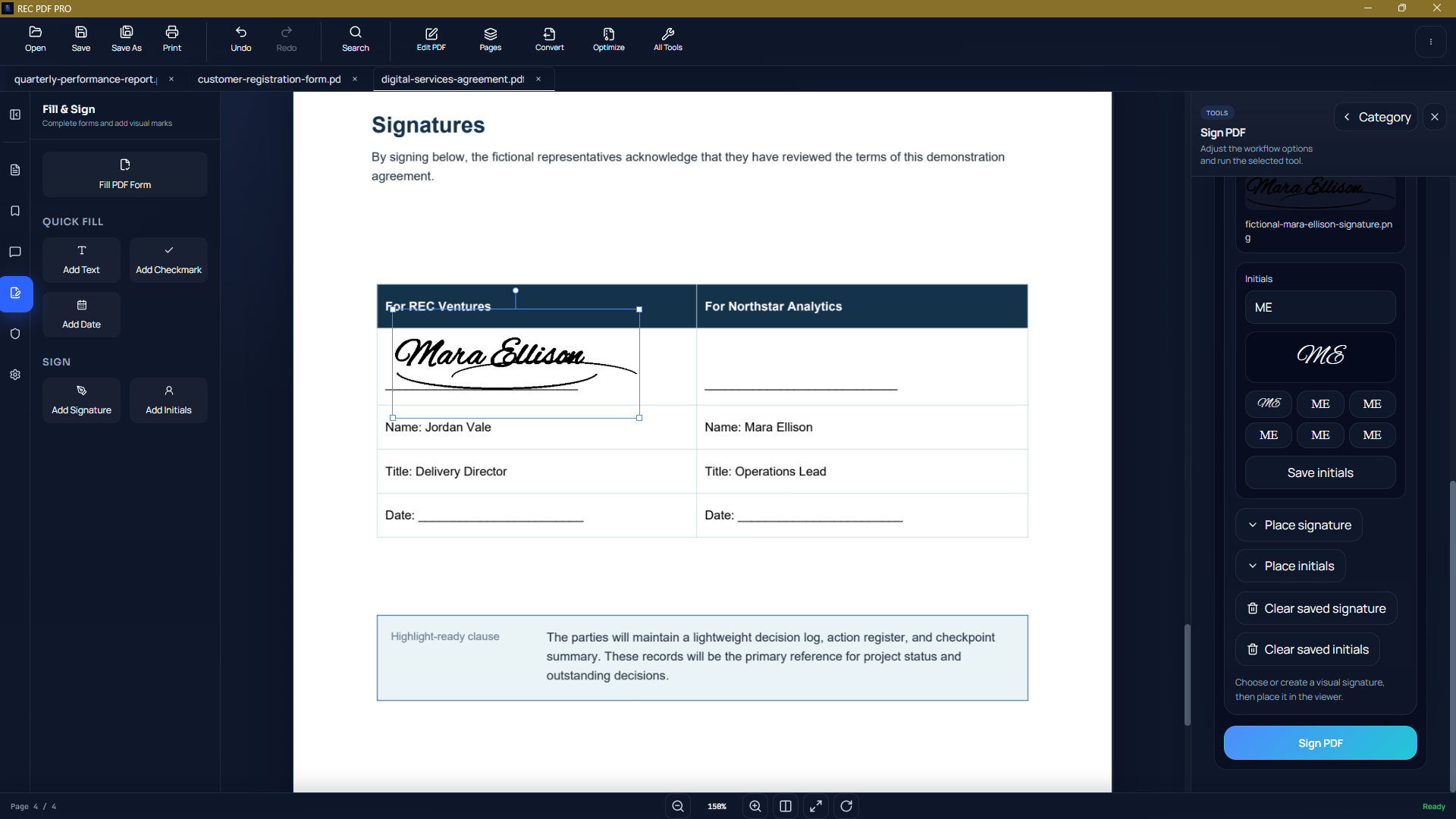
Choose Place Signature, click the target page, then move or resize the placed signature before applying the change.
4. Apply and save
Review the final placement, apply the change, and save the PDF.
Reusable Initials
REC PDF PRO also lets you enter initials, choose an available style, save them locally, and place them on a page using a workflow similar to signature placement.
Visual Signature vs. Digital Signature
A signature or initials overlay is visual content. It is not certificate identity verification and is not a cryptographic digital signature.
What About Scanned PDFs?
Scanned PDFs often contain page images rather than searchable text or native form fields. REC PDF PRO does not currently expose OCR, so automatic form detection may return no results on an image-only document.
You can still use supported visual tools to place text, marks, signatures, and initials where appropriate.
Saving and Flattening a Completed Form
After completing supported fields and overlays, use the tool's save or apply action. When a flatten option is offered, flattening can make filled content no longer editable as interactive form fields.
Choose flattening intentionally
Keep the document interactive if you expect field values to need further editing. Flatten when you specifically want supported completed field content committed into a less editable final form.
Limitations to Keep in Mind
Not every form type is supported
Some PDF field types and scripted form behavior may not be supported by the current Fill PDF workflow.
Automatic detection can be imperfect
Proposed fields should always be checked against the intended position and purpose on the page.
Image-only documents are not OCR-processed
Text inside a scanned page image is not automatically converted into searchable or editable text.
More REC PDF PRO Workflows
REC PDF PRO also includes PDF organization and conversion tools. See the REC PDF PRO product page or browse the rest of the REC Ventures guides.
Frequently Asked Questions
Can REC PDF PRO detect fillable areas automatically?
Yes. REC PDF PRO can analyze page layout and propose text and checkbox regions. Detection is heuristic rather than OCR, so proposed fields should be reviewed before use.
Can I add a visible signature to a PDF?
Yes. You can choose a signature image, save it locally for reuse, place it on a page, then move or resize it before applying the change.
Is a placed signature image a digital certificate signature?
No. A visible signature image in REC PDF PRO is a visual overlay, not a cryptographic or certificate-based digital signature.
Can I fill a scanned PDF?
Automatic field detection may find nothing on image-only scans because REC PDF PRO does not currently expose OCR. You can still place supported visual text, marks, signatures, and initials on scanned pages.
Featured application
REC PDF PRO
Explore the full Windows PDF toolkit, including merge, split, page organization, conversion, forms, signatures, search, printing, and protection tools.