
PDF guide · REC PDF PRO
How to Permanently Redact a PDF on Windows
Permanently remove names, account numbers, and other sensitive information from a PDF on Windows. Search and mark text, draw boxes, and save a redacted copy offline.
Quick answer
To permanently redact a PDF on Windows with REC PDF PRO, open the file, choose Redact PDF, mark text by searching or drawing boxes, review your marks, and select Redact and save a copy. Each marked page is rebuilt from pixels, so what you marked is gone from the new file. Your original stays unchanged, and the document never leaves your PC.
Why a Black Box Is Not Redaction
Drawing a black rectangle over a name makes it look removed. In many PDF tools, that rectangle is simply another object sitting on top of the page, and the original content stays in the file underneath. True redaction removes the content itself.
Text under the box
A shape drawn on top of a page hides the words from view, but they usually stay in the file. Anyone can often select, copy, or search them.
Hidden document data
Document properties, bookmarks, and page thumbnails can repeat the names and details you meant to remove.
Comments and attachments
Review comments, form values, and attached files can carry sensitive content that is never visible on the page.
How to Redact a PDF on Windows
- 1
Open the PDF
Open the document in REC PDF PRO. If the file is password-protected, enter its password when asked.
- 2
Choose Redact PDF
Open All Tools and choose Redact PDF in the Optimize & Protect category. Nothing changes until you apply your marks.
- 3
Search for text and mark every match
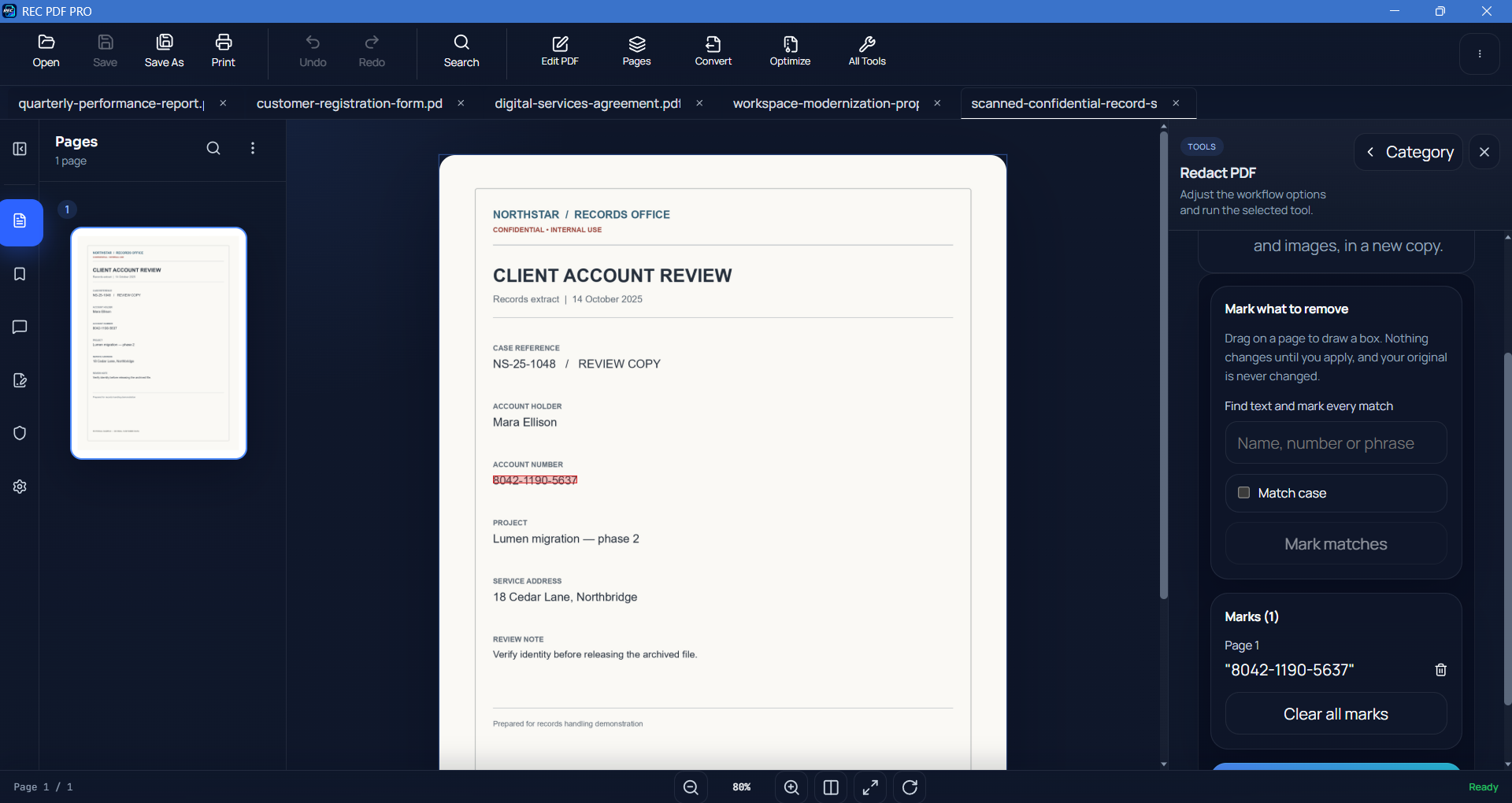
Type a name, number, or phrase under Find text and mark every match, then select Mark matches. Turn on Match case when capitalization matters.
- 4
Draw boxes over anything else
Drag on the page to cover content that search cannot reach, such as a signature, a photo, a logo, or handwriting.
- 5
Review your marks
Check the Marks list, which is grouped by page, and delete anything you marked by mistake. If a term you marked still appears somewhere unmarked, a Still showing message names the pages and lets you mark those matches too.
- 6
Redact and save a copy
Select Redact and save a copy, read the confirmation, and choose where to save. REC PDF PRO checks the new file before finishing, then opens the redacted copy.
What Happens When You Apply Redaction
Marked pages are rebuilt from pixels
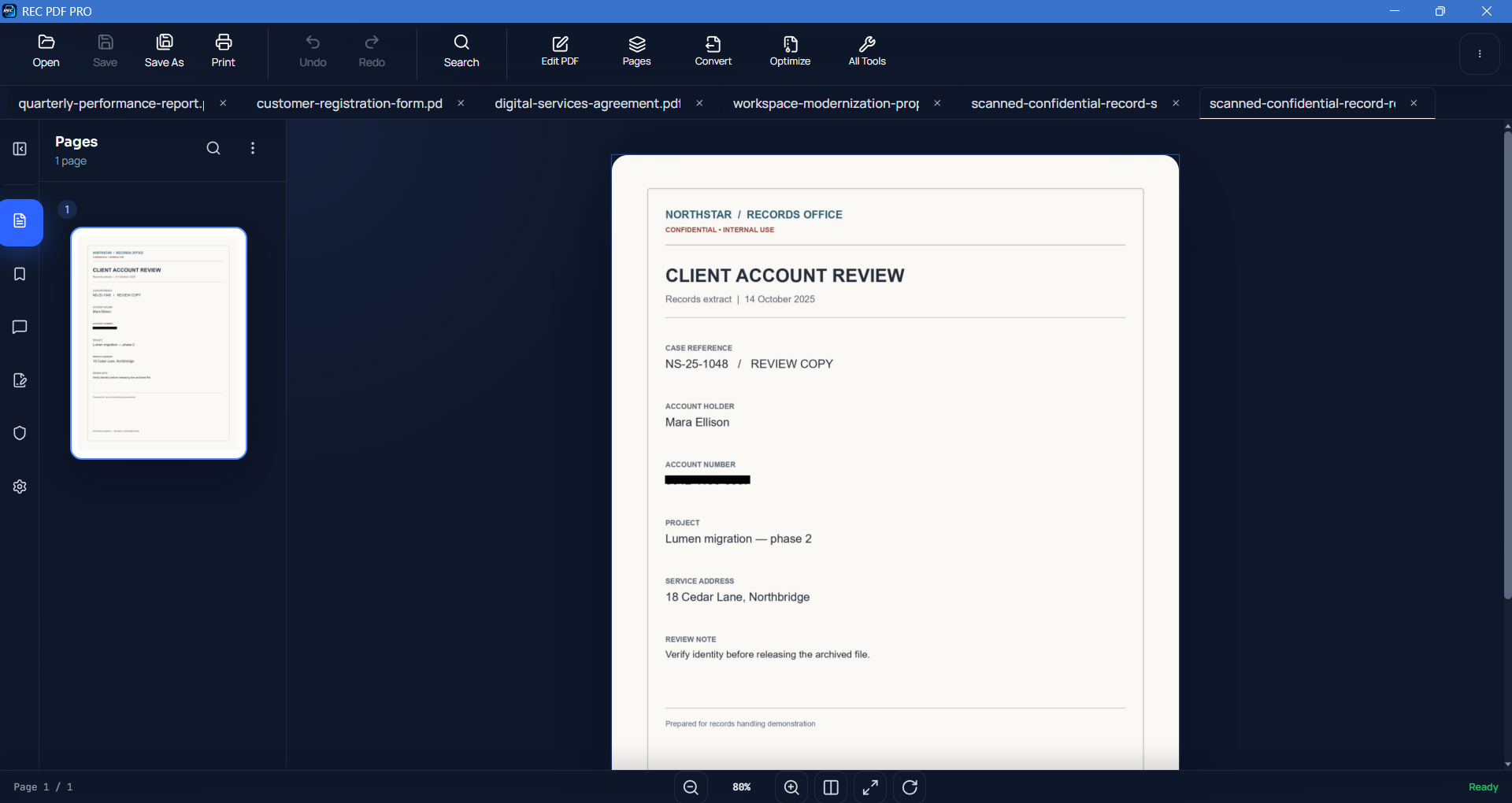
Each page you marked is rendered, the black boxes are burned in, and a new page is created from that image alone. The original text and objects on that page are not carried over.
Hidden data is removed from the whole copy
The redacted copy loses its bookmarks, links, comments, attachments, document properties, and fillable fields. Values already entered in form fields stay visible as page content, so mark them if they are sensitive.
Pages you did not mark keep their text
Unmarked pages stay selectable and searchable. They are not redacted, so the same words stay readable there unless you mark them.
Your original file never changes
Redaction always writes a new file, and REC PDF PRO will not save it over the document you opened.
How to Redact a Scanned PDF
A scanned PDF is usually a picture of each page, so there is no text for search to find. You have two options, and they work well together.
Draw boxes directly
For a short document or a few known details, drag a box over each item. This works on any page and does not need OCR.
Make it searchable first
Run Make Searchable (OCR), which REC PDF PRO offers when you open a scan. It saves a copy with an invisible text layer. Open that copy in Redact PDF to search and mark every match.
OCR can miss words
REC PDF PRO uses the OCR built into Windows, and results depend on scan quality and the languages installed on your PC. Faint text, handwriting, or an unusual layout may not be recognized, so read each page and draw boxes over anything search did not mark.
What Legal and HR Teams Commonly Redact
What needs removing depends on the document and the rules that apply to you. These are common starting points.
Legal documents
- Client names and contact details
- Account, case, and reference numbers
- Privileged or confidential passages
- Signatures and identifying exhibits
HR and personnel records
- National ID and tax numbers
- Salaries and bank details
- Medical and leave information
- Home addresses and dates of birth
Check the Redacted Copy Before You Share It
Search for the terms you removed
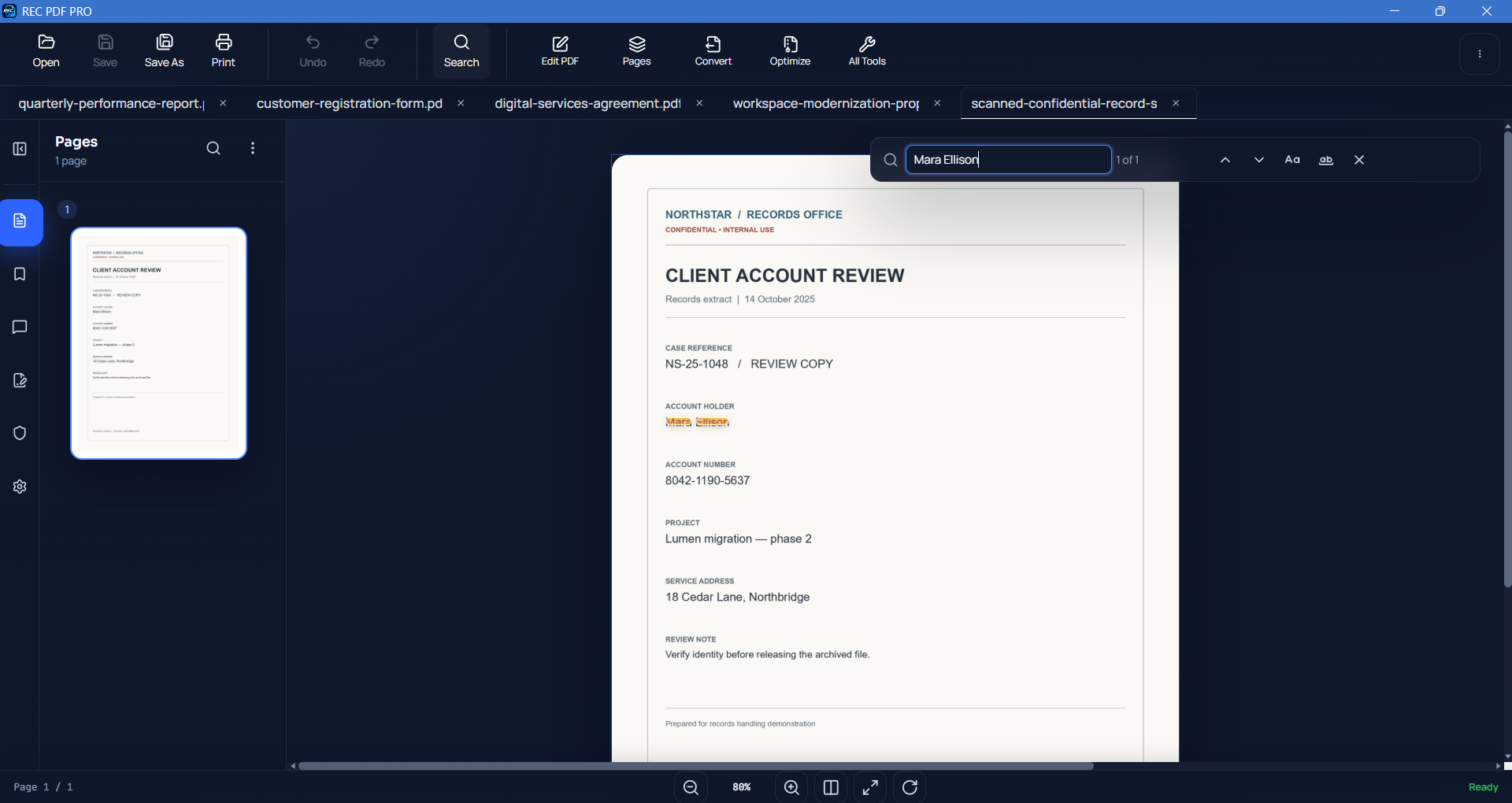
Open the redacted copy and search for each name or number. A redacted page is an image, so a term should only be found if it still sits on a page you did not mark.
Read every page
Look for details that search could not catch, including different spellings, initials, and text inside images.
Keep the two files apart
Share only the redacted copy, and store the unredacted original wherever your team keeps confidential documents.
You decide what must be removed
REC PDF PRO removes what you mark. It is not a legal advisor and does not decide what a court, regulator, or policy requires, so check the redacted copy against the rules that apply to your document.
Limitations to Keep in Mind
A marked page becomes an image
Text across the whole page stops being selectable and searchable, not only the part under the box. The page is also larger on disk, so the file can grow.
Interactive features are removed
Links, bookmarks, comments, and fillable fields do not survive in the redacted copy, because any of them can hold redacted text.
Search only finds real text
On scans, search can find only what OCR recognized. Content inside a picture must be covered with a drawn box.
The redacted copy is not password-protected
A password on the source file is not carried over to the new copy. Use Lock PDF on the redacted copy if it needs one.
More REC PDF PRO Workflows
Preparing a document set? You can also merge PDFs offline or fill and sign a PDF. See the REC PDF PRO product page or browse the rest of the REC Ventures guides.
Frequently Asked Questions
What is the difference between redacting and blacking out a PDF?
Blacking out usually places a shape over content that remains in the file. Redaction removes that content, so the saved document no longer contains it.
Can redacted text be recovered from the saved copy?
The content under a box is not in the copy REC PDF PRO saves, because each marked page is rebuilt from an image with the boxes already burned in. Content you did not mark remains, so review every page before sharing.
Can I redact a PDF without uploading it?
Yes. Redaction runs on your Windows PC and does not need an internet connection, and your documents are not uploaded to REC Ventures.
Can I redact a scanned PDF?
Yes. Draw boxes directly on the scan, or run Make Searchable (OCR) first so you can search for text and mark every match.
Does redaction remove metadata?
Yes. Document properties are removed from the redacted copy, along with bookmarks, links, comments, attachments, and fillable fields.
Can I undo a redaction?
Not in the redacted copy. Your original file stays unchanged, so you can open it again and redact a new copy with different marks.
Will a redacted page stay searchable?
Not in the current version, because the whole marked page becomes an image. You can run Make Searchable (OCR) on the redacted copy to search the words still visible. OCR reads only the final page image, so it cannot bring removed text back.
Featured application
REC PDF PRO
Explore the full Windows PDF toolkit, including true redaction, OCR for scans, merge, split, page organization, conversion, forms, signatures, search, printing, and protection tools.