
PDF guide · REC PDF PRO
How to Merge PDF Files Offline on Windows
Learn how to merge two or more PDF files offline on Windows with REC PDF PRO, arrange their order, choose an output file, and combine them locally.
Quick answer
To merge PDFs offline with REC PDF PRO, open Merge PDF, add at least two files, arrange them with the arrow controls, choose an output file, and run Merge PDFs. The workflow runs on your Windows desktop rather than requiring an online upload.
What You Need Before You Start
How to Merge PDF Files Offline on Windows
The built-in REC PDF PRO help workflow defines four steps: add the PDFs, arrange them, choose the output, and run the merge.
- 1
Open Merge PDF and add your files
Open the Merge PDF tool in REC PDF PRO and add at least two PDF files. The merge workflow is designed for combining two or more PDFs into one output document.
- 2
Arrange the PDFs in the order you want
Use the arrow controls to move files up or down. The file order you set here determines the sequence of the combined document.
- 3
Choose the output file
Select where the merged PDF should be saved and give the output file the name you want. This keeps the merge result separate from the source files you selected.
- 4
Run Merge PDFs
Start the merge. When it finishes, open the saved output from the location you chose and confirm that the documents appear in the intended order.
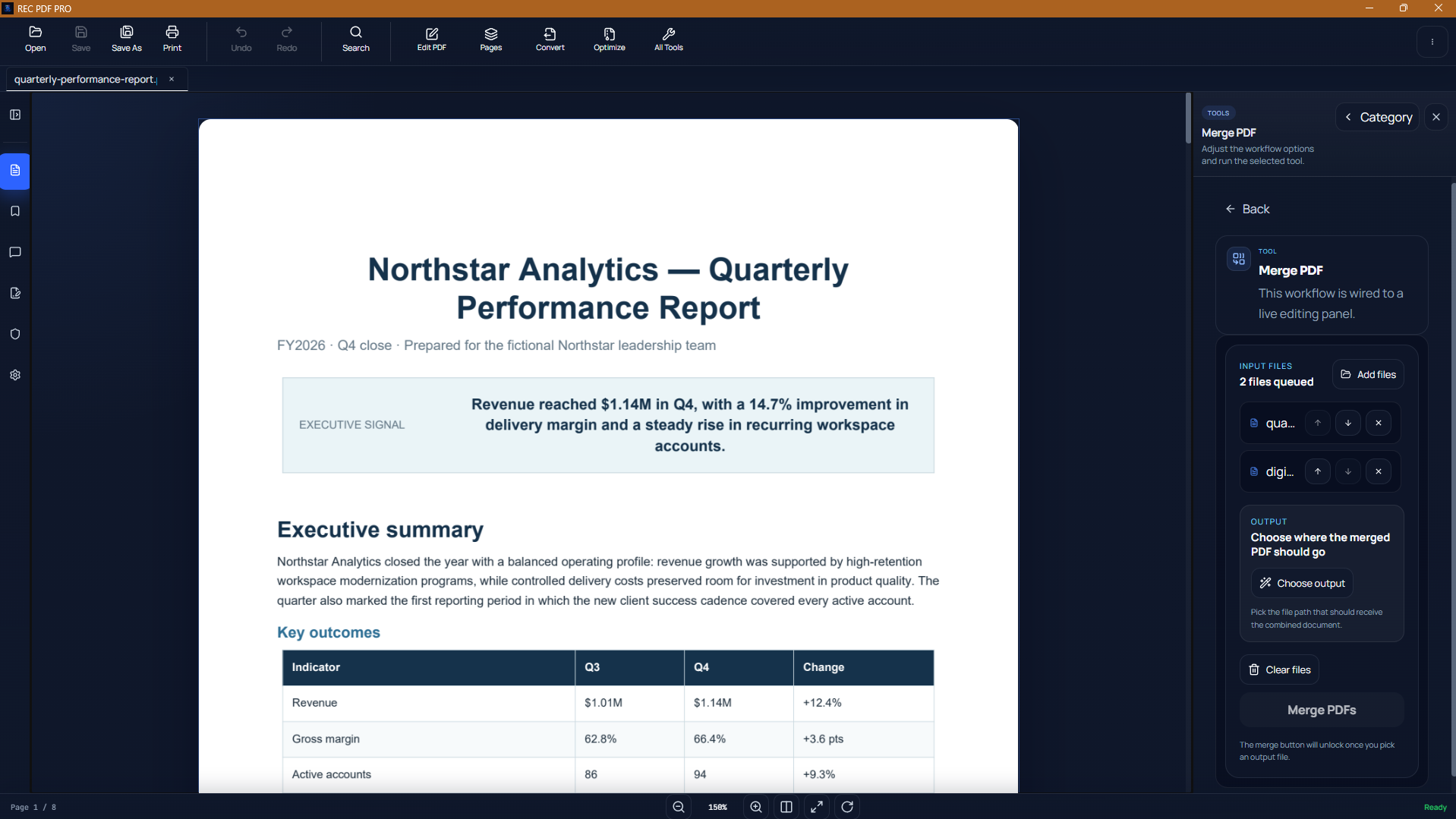
The screenshot shows the REC PDF PRO desktop workspace. Merge PDF is one of the application's PDF organization tools.
Why Merge PDFs Offline?
An offline merge workflow is useful when the documents are sensitive, large, or simply do not need to leave the computer. It also avoids the upload-and-download step required by browser-based PDF merging services.
Protected PDFs Need the Right Permissions
REC PDF PRO checks verified document permissions. A protected PDF can prevent assembly when merging is not permitted, so restrictions on an input file may need to be resolved first.
Troubleshooting a Merge
The merge cannot start
Confirm that at least two PDF files have been added and that an output file has been selected.
The document order is wrong
Return to the file list and use the arrow controls to arrange the inputs before running the merge again.
A protected input blocks the operation
Check the PDF's verified permissions. Document restrictions can prevent assembly even when the file itself opens normally.
Merge, Split, and Organize From the Same Toolkit
Need to separate a document instead? Read the guide to splitting a PDF on Windows. REC PDF PRO also includes extract, reorder, rotate, and remove-page workflows. See the REC PDF PRO product page for the broader PDF toolkit.
Frequently Asked Questions
Can I choose the order of the PDFs before merging?
Yes. REC PDF PRO provides arrow controls in the Merge PDF workflow so you can arrange the input files before creating the combined document.
Do I need to upload the PDFs to merge them?
No. REC PDF PRO is a Windows desktop application designed for local PDF workflows, so the Merge PDF task does not require sending the documents to an online merge service.
Why might a protected PDF fail to merge?
A protected input can block document assembly when its verified permissions do not allow that operation. If a file is restricted, review its permissions before trying again.
Featured application
REC PDF PRO
Explore the full Windows PDF toolkit, including merge, split, page organization, conversion, forms, signatures, search, printing, and protection tools.