
PDF guide · REC PDF PRO
How to Split a PDF on Windows
Split a PDF into separate page files on Windows with REC PDF PRO, choose an output folder, and understand when to use Extract Pages instead.
Quick answer
To split a PDF on Windows with REC PDF PRO, open Split PDF, choose the source document, select an output folder, and run the split. The current workflow creates one separate PDF file for every page in the source document.
What REC PDF PRO Means by Split PDF
The Split PDF tool is designed for separating an entire PDF into page-level files. If a document contains ten pages, the current split workflow produces ten separate PDFs.
Split PDF does not currently create arbitrary page ranges
If you want pages 2–5, or another selected set of pages, combined into a new PDF, use REC PDF PRO's Extract Pages workflow instead.
How to Split a PDF on Windows
- 1
Open Split PDF and choose the source
Open the Split PDF tool in REC PDF PRO and select the PDF you want to separate into individual page files.
- 2
Choose an output folder
Select the folder where REC PDF PRO should save the page-level PDF files.
- 3
Run Split PDF
Start the split operation. REC PDF PRO creates a separate PDF for each page in the source document.
- 4
Review the generated page files
Open the output folder and review the page-level PDFs. The generated files are named from the source document.
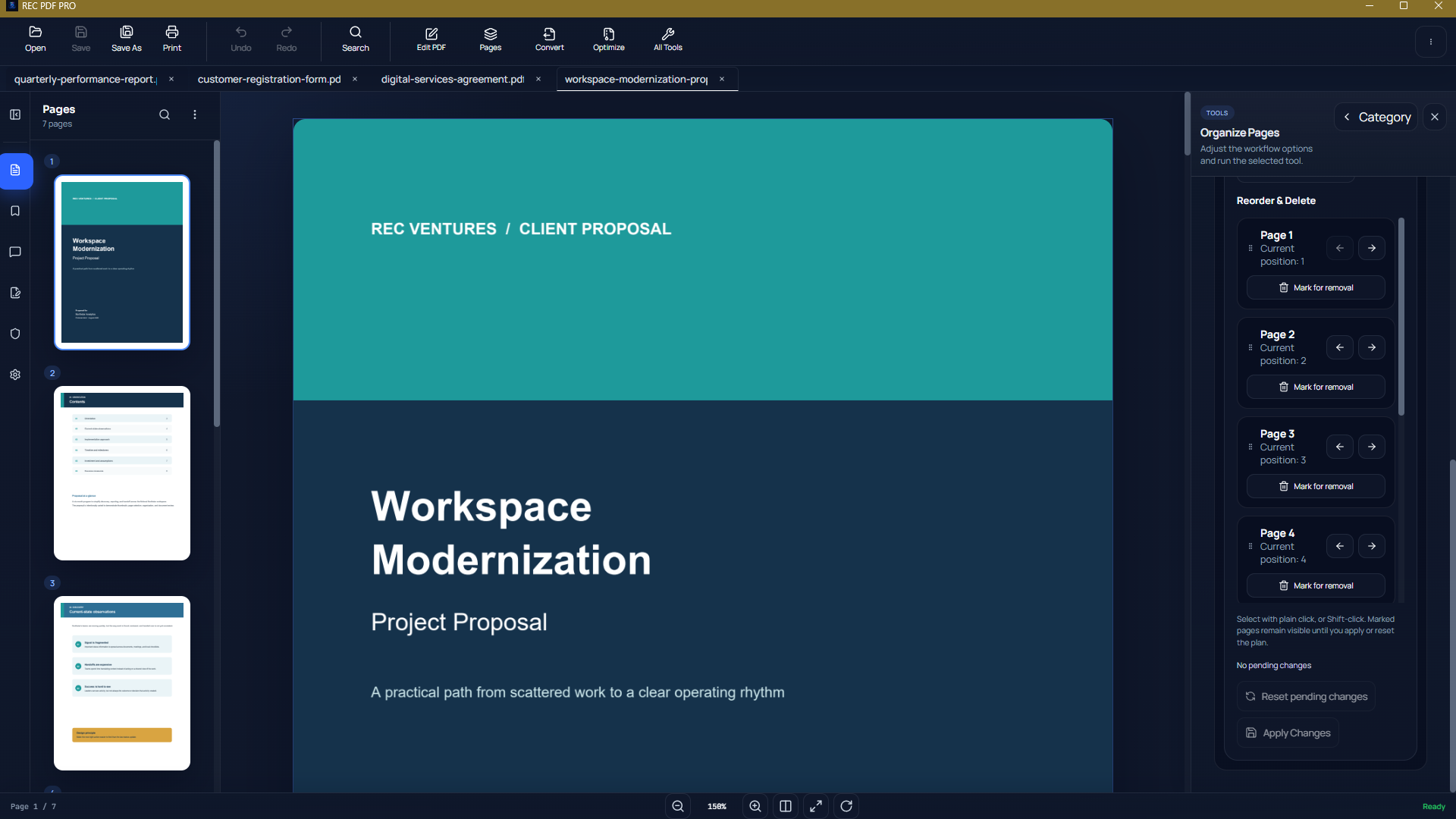
REC PDF PRO includes split, extract, reorder, rotate, delete, and other page-management workflows in the same Windows desktop toolkit.
Split PDF
Use Split PDF when you want every page in one source document exported as a separate PDF file.
Extract Pages
Use Extract Pages when you want selected pages copied into a new PDF instead of producing one file for every page.
Troubleshooting Split PDF
The split cannot start
Confirm that you selected a source PDF and an output folder before running the tool.
You expected one PDF containing several selected pages
Split PDF produces one file per page. Use Extract Pages when you need selected pages collected into a separate PDF.
You cannot find the output files
Check the output folder chosen before the split. The generated page PDFs are written there and named from the source document.
Split and Merge PDFs From the Same Toolkit
Need to combine documents instead? Read the guide to merging PDF files offline on Windows. You can also explore the full REC PDF PRO toolkit.
Frequently Asked Questions
Can REC PDF PRO split every page into a separate PDF?
Yes. The current Split PDF workflow exports every page of the selected source PDF as its own PDF file.
Can I split a PDF into custom page ranges?
Not with the current Split PDF workflow. It creates one PDF per page. If you need a new PDF containing selected pages, use Extract Pages instead.
Where are the split PDF files saved?
REC PDF PRO saves the generated page-level PDFs in the output folder you choose before starting the split.
Featured application
REC PDF PRO
Explore the full Windows PDF toolkit, including merge, split, page organization, conversion, forms, signatures, search, printing, and protection tools.