
PDF guide · REC PDF PRO
How to Convert PDF to Excel on Windows
Export recognized PDF tables and structured page content to an Excel workbook on Windows with REC PDF PRO.
Quick answer
To convert a PDF to Excel with REC PDF PRO, open PDF to Excel, choose a PDF, select an output folder, start the conversion, and inspect the generated workbook. Table recognition is based on the PDF's text and geometry rather than OCR.
How to Convert PDF to Excel on Windows
- 1
Open PDF to Excel and choose a PDF
Open the PDF to Excel tool in REC PDF PRO and select the PDF whose tables or structured page content you want to export.
- 2
Choose an output folder
Select the folder where the generated Excel workbook should be saved.
- 3
Start the conversion
Run the conversion. REC PDF PRO analyzes the PDF's text and page geometry to identify tables and structured content for the workbook.
- 4
Inspect the workbook
Open the generated Excel file and review the detected tables, cell placement, values, and any complex areas that may need correction.
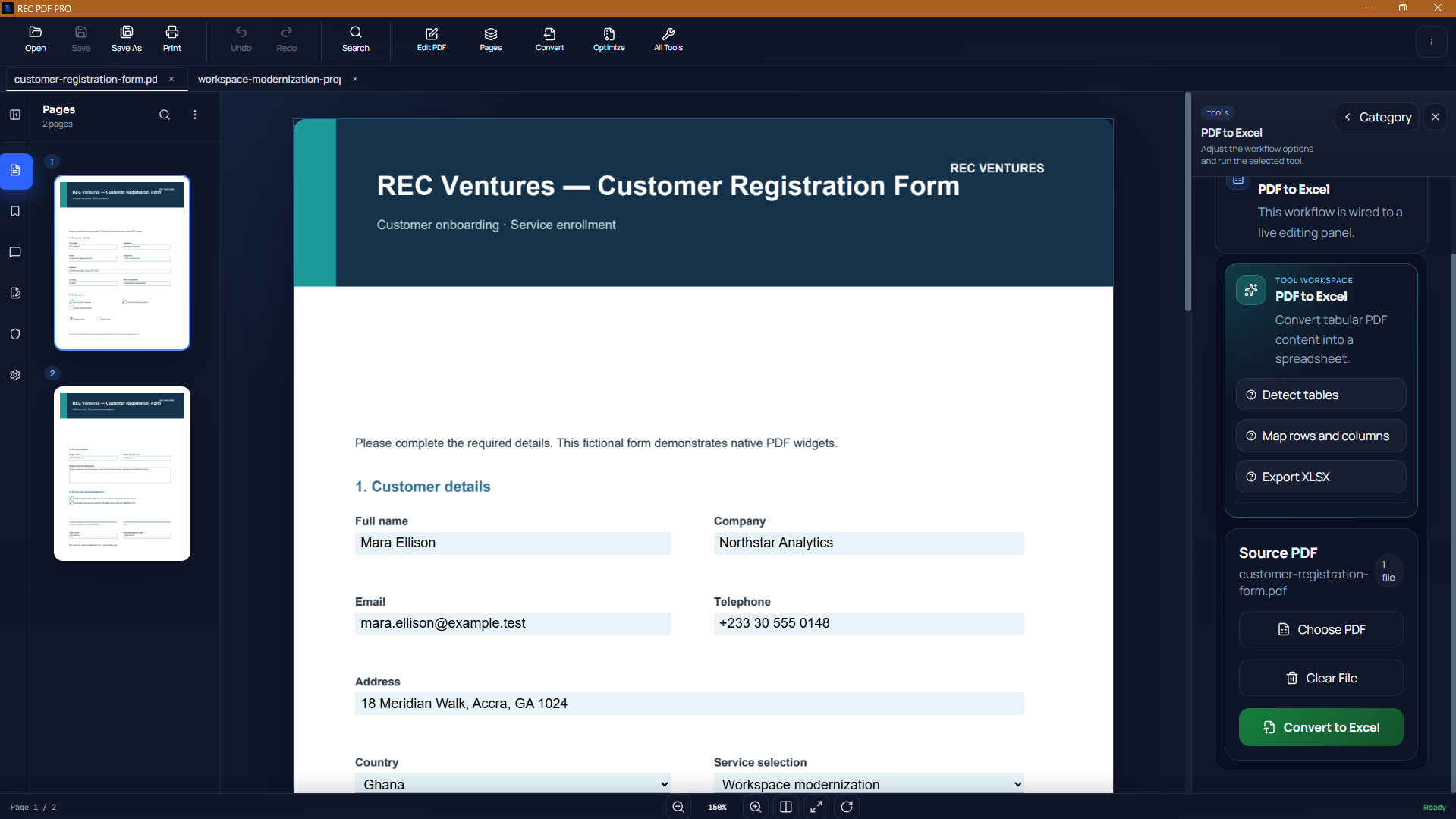
REC PDF PRO handles PDF viewing and conversion from the same local Windows application.
What the Converter Looks For
The converter uses text and page geometry to recognize table structure and other structured page content. Clear digital PDFs generally provide stronger source information than image-only scans.
Complex Tables May Need Correction
Merged cells, unusual spacing, nested layouts, and other complex structures can make table reconstruction harder. Always inspect the workbook before using it as final data.
Digital PDFs Work Differently From Scans
A digital PDF usually contains text objects and layout geometry that can be analyzed directly. An image-only scan contains pixels instead. The current REC PDF PRO PDF-to-Excel workflow does not perform OCR, so scanned pages do not automatically become spreadsheet text.
Troubleshooting PDF to Excel
A table is reconstructed incorrectly
Review the source table for unusual geometry, merged regions, visual-only separators, or other complex structure. The workbook may need manual correction.
A scanned table is missing
Image-only scans are not OCR-processed by this workflow, so they do not provide the same extractable text and geometry as a digital PDF.
The workbook needs cleanup
Use the generated workbook as a structured export and inspect values, columns, and table boundaries before downstream analysis.
Related REC PDF PRO Guides
If you need editable document content rather than a spreadsheet, see the PDF to Word guide. For document assembly, see the offline PDF merge guide.
Frequently Asked Questions
Can REC PDF PRO convert PDF tables to Excel?
Yes. The PDF-to-Excel workflow exports recognized tables and structured page content to an Excel workbook.
Will every PDF table convert perfectly?
No. Table recognition depends on the PDF's text and geometry, and complex layouts can require correction after conversion.
Does PDF to Excel use OCR for scanned documents?
No. Image-only scans are not OCR-processed by the current PDF-to-Excel workflow.
Featured application
REC PDF PRO
Explore the full Windows PDF toolkit, including merge, split, page organization, conversion, forms, signatures, search, printing, and protection tools.