
PDF guide · REC PDF PRO
How to Convert PDF to Word on Windows
Convert PDF files to DOCX on Windows with REC PDF PRO using the built-in local converter, without requiring Microsoft Word.
Quick answer
To convert a PDF to Word on Windows with REC PDF PRO, open PDF to Word, choose one or more PDFs, select an output folder, and start the conversion. The app creates DOCX files using its built-in local converter, so Microsoft Word is not required.
How to Convert PDF to Word on Windows
- 1
Open PDF to Word and choose your PDFs
Open the PDF to Word tool in REC PDF PRO, then choose one or more PDF files to convert.
- 2
Choose an output folder
Select the folder where REC PDF PRO should save the generated DOCX files.
- 3
Start the conversion
Run the conversion. REC PDF PRO uses its built-in local PDF-to-DOCX converter, so Microsoft Word is not required for this direction.
- 4
Review the DOCX output
Open the generated Word document and check headings, paragraphs, tables, fonts, and other layout-sensitive content before relying on it as a final editable copy.
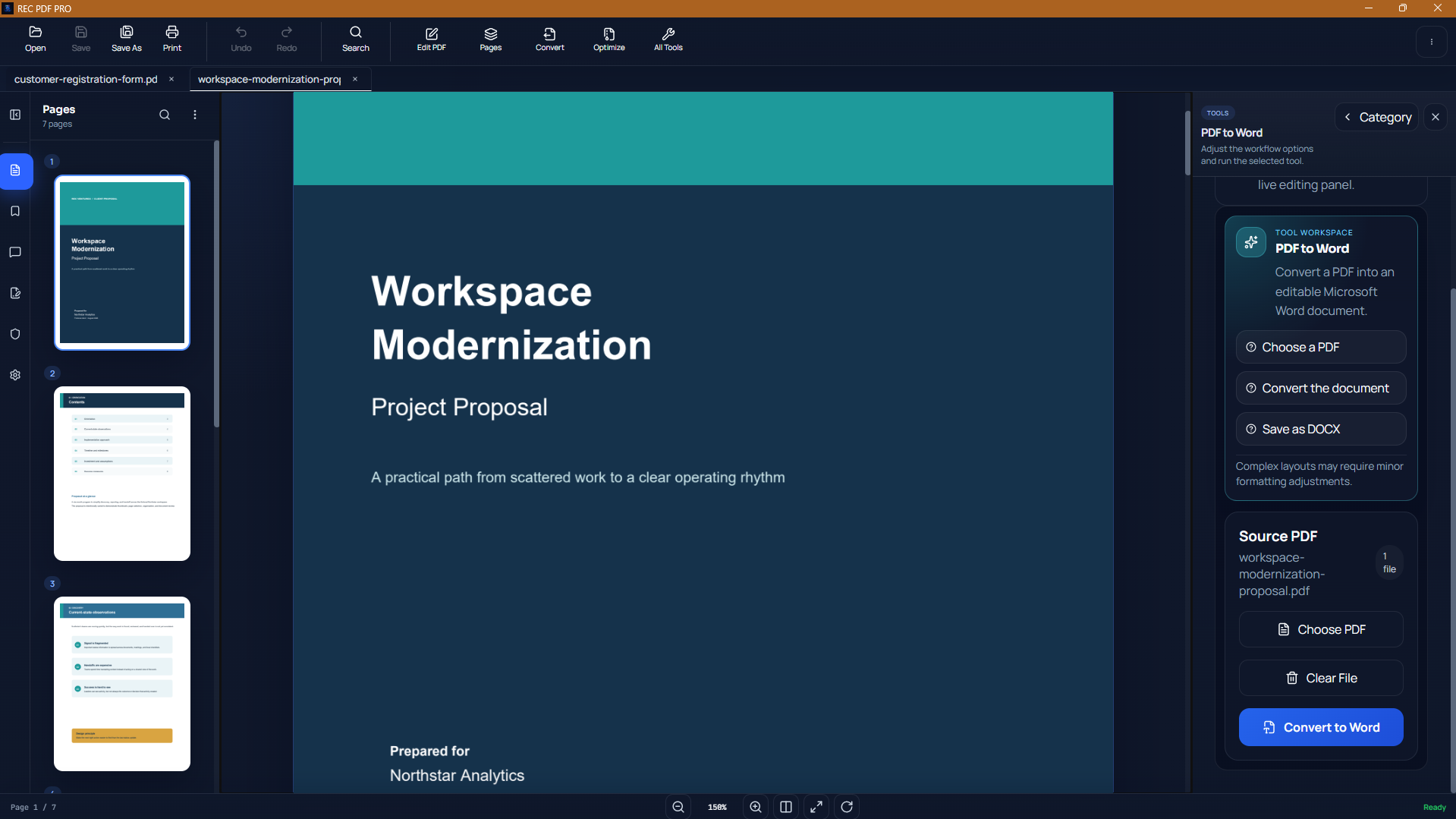
REC PDF PRO keeps PDF conversion tools inside the same Windows desktop workspace used for viewing and managing documents.
What the Converter Is Best For
Text-based PDFs with straightforward paragraphs, headings, and table structure generally give the converter clearer source information to work with. The resulting DOCX is intended to make the document editable, not to guarantee pixel-perfect reproduction of PDF layout.
Scanned PDFs Need Special Attention
The current PDF-to-Word workflow does not perform OCR. If a page is only an image of text, REC PDF PRO does not turn that image into editable text during this conversion.
Why PDF-to-Word Results Can Differ From the Original
PDF and DOCX represent documents differently. Fonts, annotations, complex positioning, multi-column layouts, and other PDF-specific structures can require approximation when they are rebuilt as editable Word content. Review the generated document before distributing or editing it further.
Troubleshooting PDF to Word
The output layout does not exactly match
Check complex sections such as columns, tables, unusual fonts, annotations, and positioned elements. These may need manual adjustment in the DOCX.
A scanned page is not editable
The current converter does not perform OCR, so image-only text remains a scanned-image limitation rather than editable extracted text.
You cannot find the converted file
Check the output folder selected before starting the conversion. REC PDF PRO writes the DOCX result there.
Other Local PDF Workflows
REC PDF PRO also supports PDF-to-Excel conversion and PDF organization tools. You can also read the PDF to Excel guide or the offline PDF merge guide.
Frequently Asked Questions
Do I need Microsoft Word installed to convert PDF to DOCX?
No. REC PDF PRO uses its built-in local PDF-to-DOCX converter for PDF to Word conversion.
Will the Word document look exactly like the PDF?
Not always. Complex layouts, annotations, fonts, and other PDF-specific structure may not reproduce exactly in DOCX, so the result should be reviewed.
Can REC PDF PRO convert a scanned PDF to editable Word text?
Not through OCR. Image-only scanned pages are not OCR-processed by the current PDF-to-Word workflow.
Featured application
REC PDF PRO
Explore the full Windows PDF toolkit, including merge, split, page organization, conversion, forms, signatures, search, printing, and protection tools.