
Data guide · REC CSV Cleaner Pro
How to Remove Duplicate Rows From a CSV on Windows
Remove duplicate CSV rows on Windows with REC CSV Cleaner Pro by comparing entire rows or selected columns and choosing which matching record to keep.
Quick answer
To remove duplicate rows from a CSV in REC CSV Cleaner Pro, add a Deduplicate Rows step, choose whether to compare the entire row or selected columns, choose whether to keep the first or last matching record, then preview the result before exporting.
What Counts as a Duplicate Row?
Duplicate removal depends on the comparison scope you choose. REC CSV Cleaner Pro can compare all visible columns in a row or only the columns you select.
Entire Row
Two rows are treated as duplicates when their visible values match across the full comparison row.
Selected Columns
Only the selected fields determine whether records match. This is useful when a stable field such as Customer ID or Email should define uniqueness.
Why Cleaning Order Matters
Duplicate comparison uses the values that exist when the deduplication step runs. That means earlier workflow steps can change the result.
Exact comparison is not fuzzy matching
For example, "Alice" and " Alice " are different values until whitespace is trimmed. If those records should match, place the appropriate cleanup step before Deduplicate Rows.
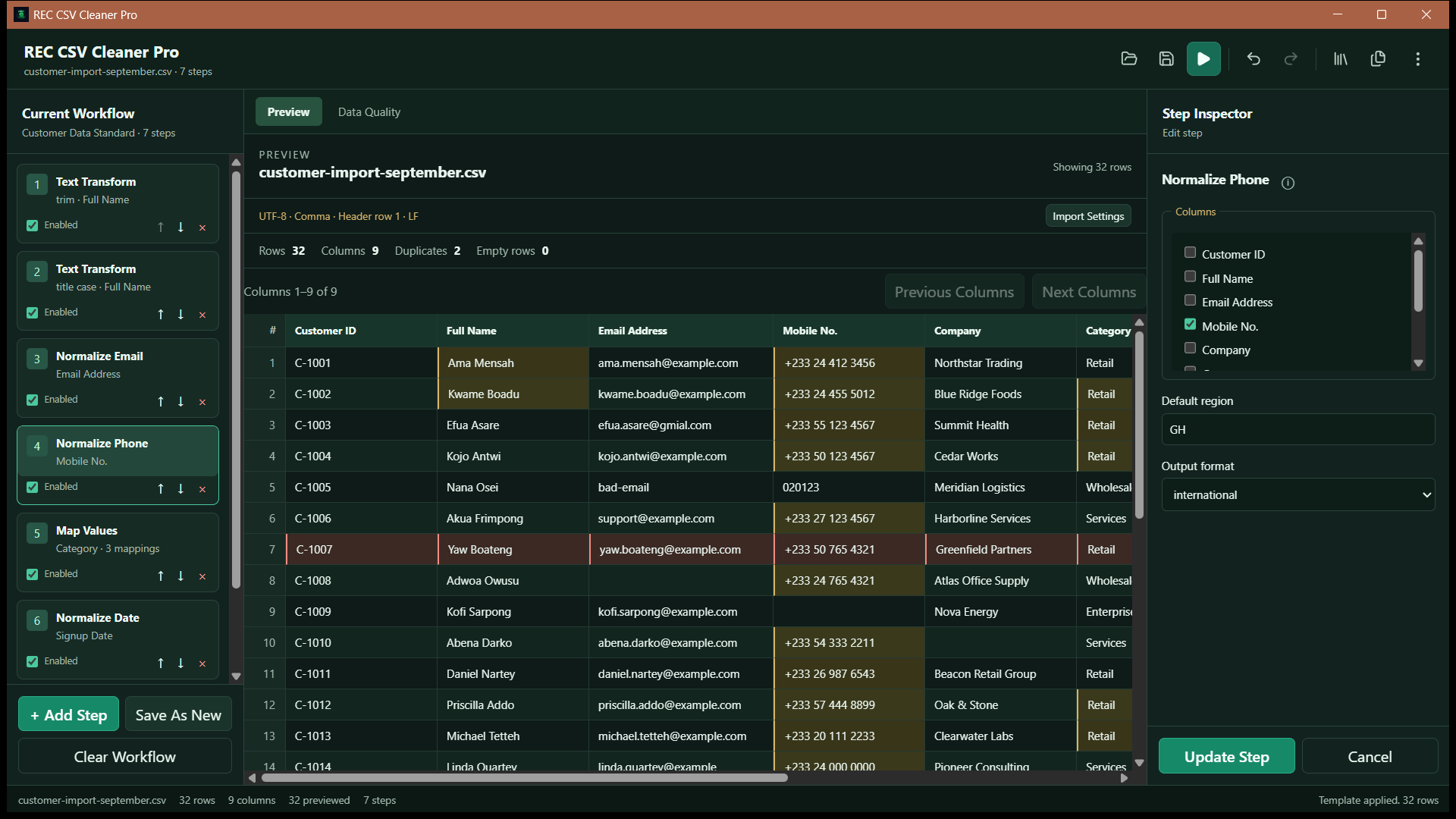
How to Remove Duplicate Rows From a CSV
- 1
Import the CSV and review the data
Open the CSV in REC CSV Cleaner Pro and confirm that the file structure, headers, delimiter, and other import settings have been interpreted correctly.
- 2
Normalize values first when needed
If values differ only because of whitespace, case, phone formatting, or another correctable difference, place the relevant cleanup or normalization steps before duplicate removal.
- 3
Add a Deduplicate Rows step
Add the Deduplicate Rows transformation to the workflow. The step removes repeated records using the comparison scope you choose.
- 4
Choose the comparison scope
Use Entire Row to compare all visible columns, or choose Selected Columns when only specific fields should determine whether two records are duplicates.
- 5
Choose which matching row survives
Select Keep First or Keep Last to control which row is retained when matching duplicate records are found.
- 6
Preview the result before exporting
Review the transformed data and duplicate counts before exporting the cleaned CSV or Excel workbook.
Keep the First or Last Matching Row
The Deduplicate Rows step lets you decide which matching record survives. Keep First retains the first occurrence in the current row order. Keep Last retains the last occurrence instead.
This choice matters when duplicate records contain the same comparison keys but appear at different positions in the imported data.
Check Duplicate Issues Before and After Cleaning
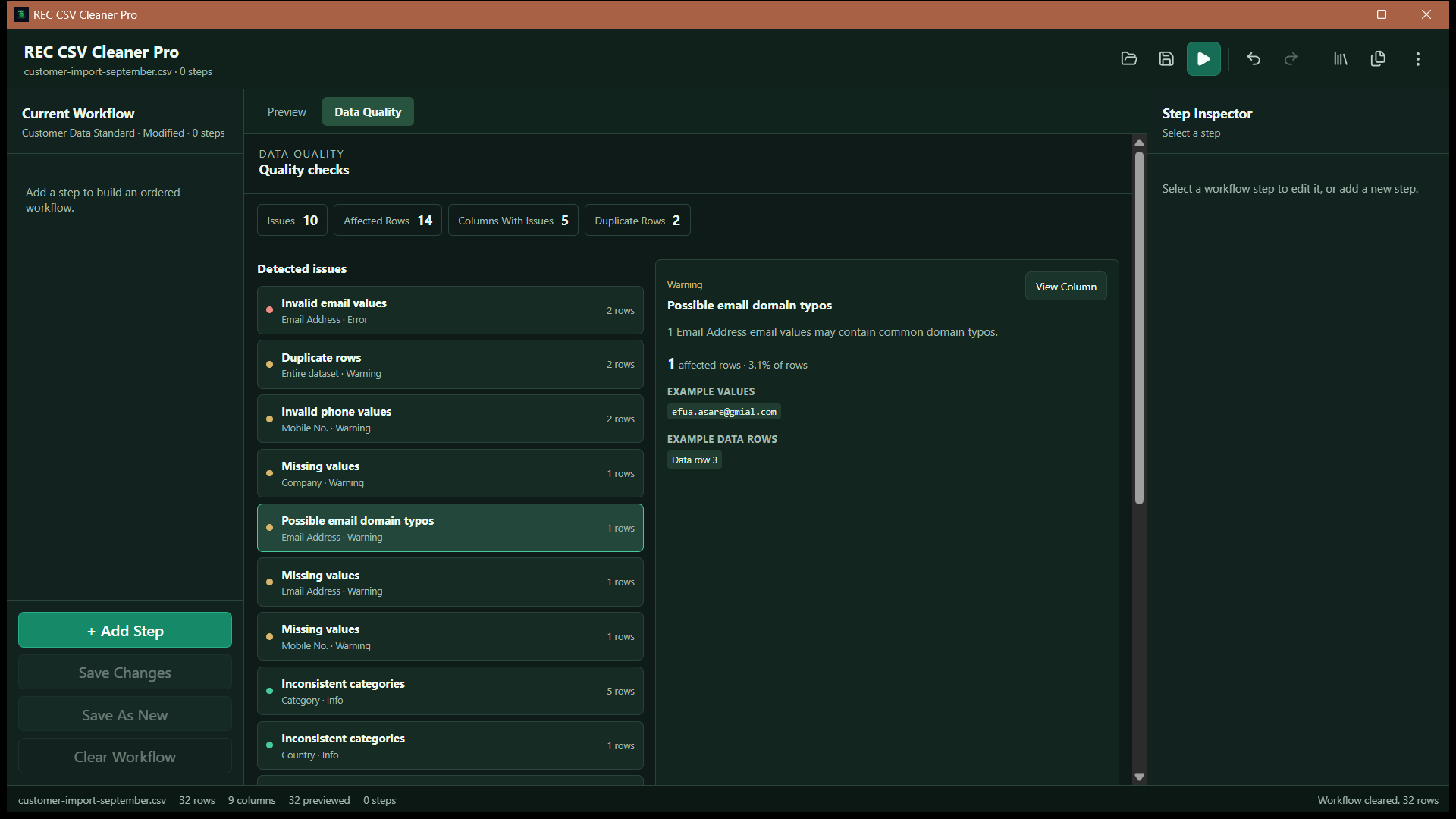
REC CSV Cleaner Pro's Data Quality Center can report duplicate rows in the current transformed dataset. This gives you another way to review whether duplicates remain after the workflow runs.
When Selected-Column Deduplication Is Useful
Comparing selected columns is useful when one record can legitimately contain different information in secondary fields but should still be treated as the same logical entity.
For example, a customer dataset might contain multiple rows for the same email address with different notes or timestamps. If Email is the field that defines uniqueness for your workflow, compare that column rather than the entire row.
Continue the CSV Cleaning Workflow
For the complete cleaning process, read the guide to cleaning CSV data on Windows. If you need to apply a saved workflow to many files, see the batch CSV cleaning guide.
Frequently Asked Questions
Can REC CSV Cleaner Pro remove duplicate rows from a CSV?
Yes. The Deduplicate Rows transformation can compare either the entire visible row or selected columns and keep the first or last matching record.
Can I remove duplicates based on only one or two columns?
Yes. Choose Selected Columns as the comparison scope and select the fields that should define a duplicate, such as Email, Customer ID, or a combination of columns.
Does duplicate removal use fuzzy matching?
No. The current Deduplicate Rows workflow uses exact comparison of the selected values after earlier workflow steps have run. It does not perform fuzzy or near-duplicate matching.
Should I clean values before removing duplicates?
Often, yes. If two values should be considered equivalent but differ because of whitespace, letter case, phone formatting, or another correctable difference, normalize those values before the deduplication step.
Featured application
REC CSV Cleaner Pro
Build controlled data-cleaning workflows for CSV, delimited text, and Excel files with reviewed imports, ordered transformations, data-quality analysis, reusable templates, and batch processing.